Why install?
beanies.family is a Progressive Web App (PWA) — the same app you use in your browser, but with a home-screen icon and a full-screen launch (no browser bars). Installing gets you:
- A real app icon on your home screen / dock
- Opens instantly in full-screen, no URL bar
- Works offline once it’s loaded
- Still 100% local-first — no app-store account, no review process, no data leaves your device unless you enable sync
Jump to the steps for your device
📱 iPhone / iPad🤖 Android💻 Desktop (Mac / Windows / Linux)
📱 iPhone / iPad
On iPhone and iPad, you install through the Share menu in Safari. This is the only browser on iOS that can install a PWA — if you’re using Chrome or Firefox, switch to Safari first.
Open app.beanies.family in Safari — no need to sign in yet, you’ll do that once the installed app opens
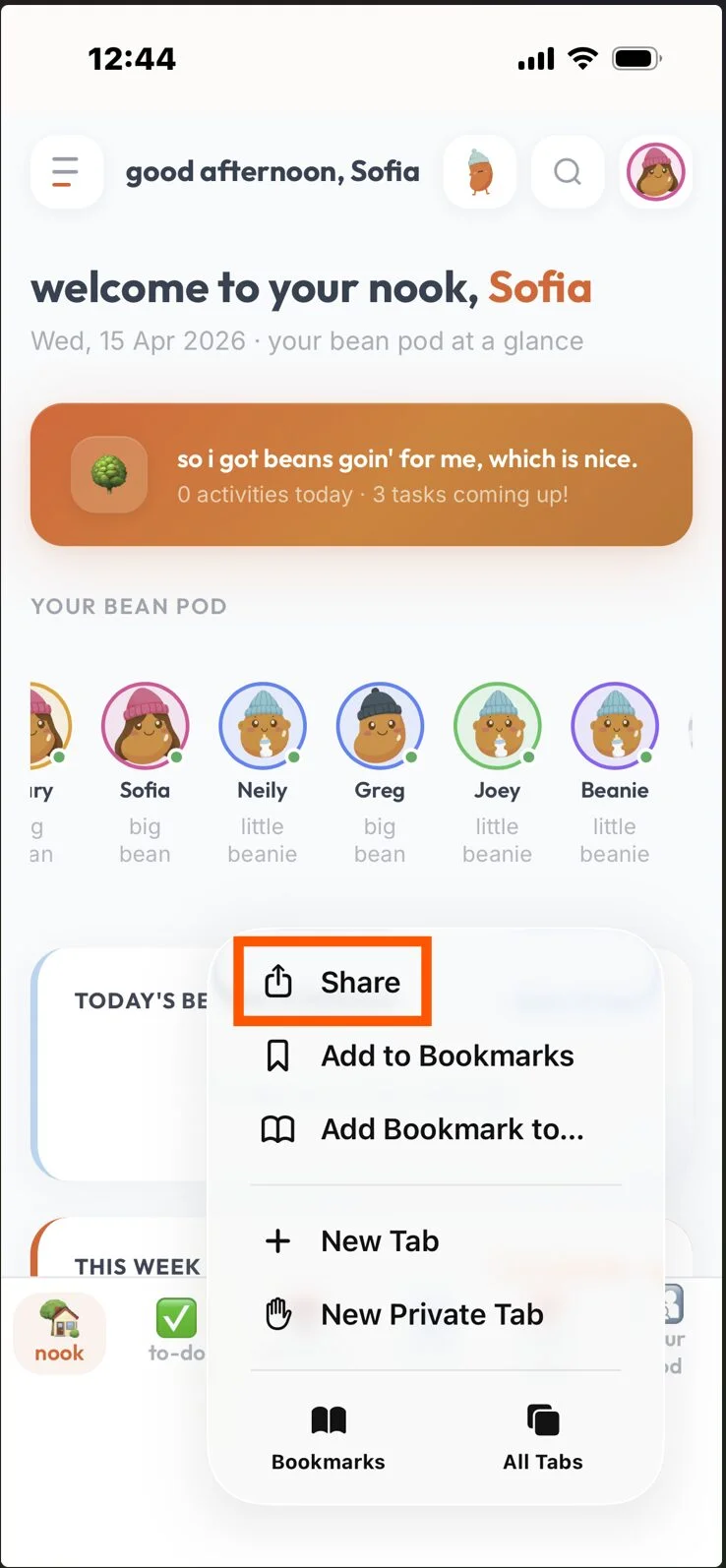
Tap the Share button at the bottom of the screen (the square with an up-arrow)
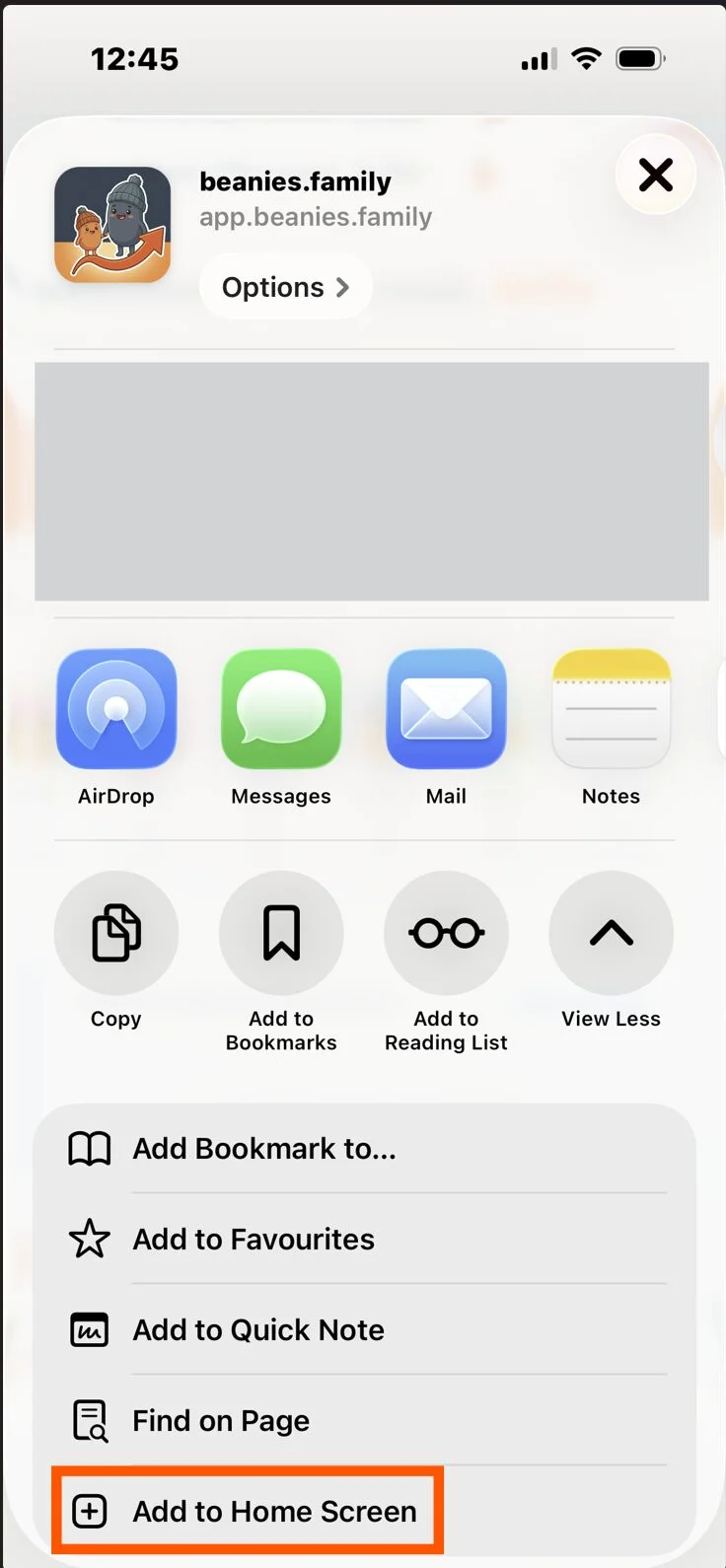
Scroll down in the share sheet and tap Add to Home Screen
Edit the name if you want (or leave it as "beanies.family") and tap Add in the top-right
The beanies icon now appears on your home screen. Tap it to open the app full-screen.
Once the icon is on your home screen, skip ahead to After installing to sign in.
🤖 Android
On Android (Chrome, Edge, Brave, Samsung Internet, and most other browsers), you have three ways to install — pick whichever shows up for you first.
Option 1 — Accept the automatic install prompt
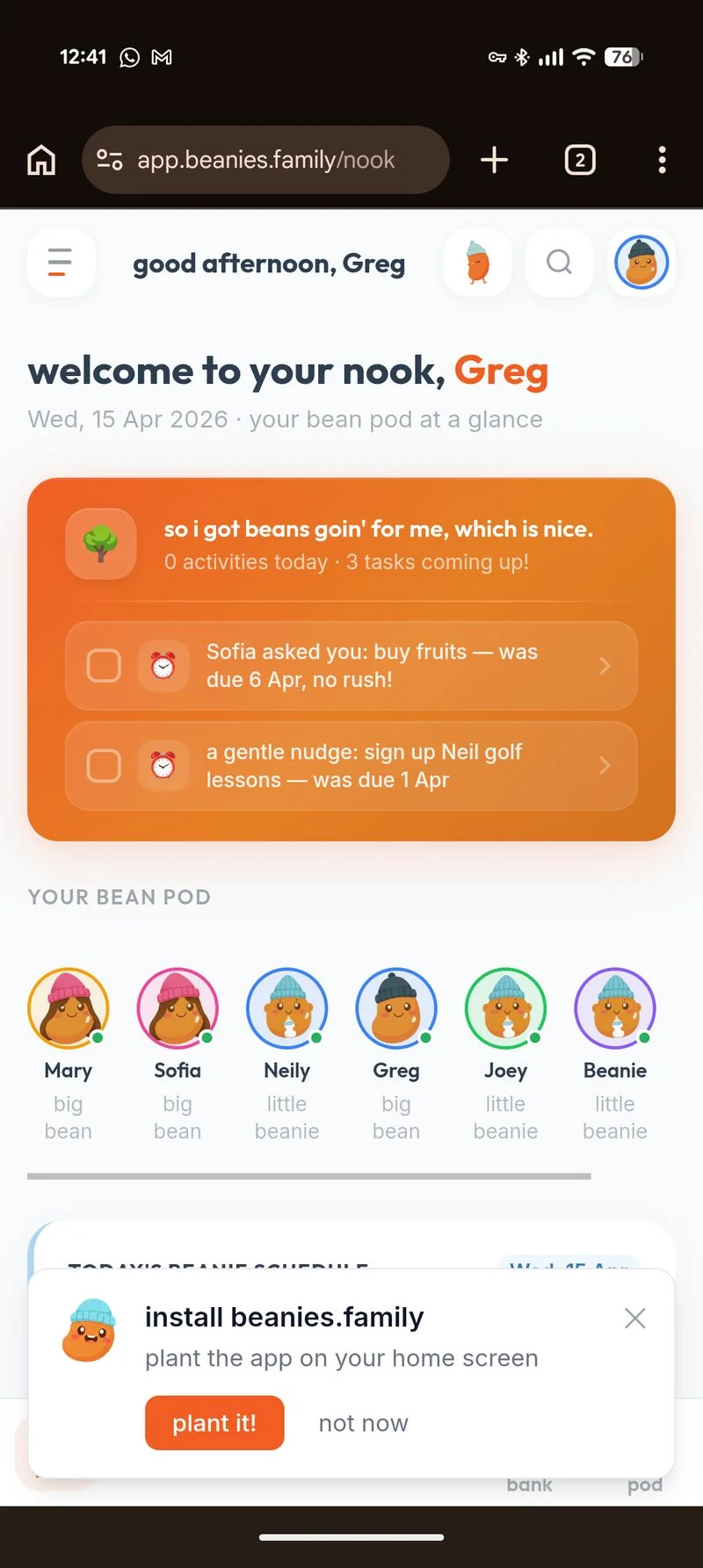
After using beanies.family for a minute or two, your browser may show a small pop-up asking if you want to install the app. If you see it, tap Install (or Add) and you’re done — skip to After installing.
Option 2 — Install from inside the app (Settings)
If you’re already signed in and using beanies.family in a browser tab, there’s a shortcut right inside the app:
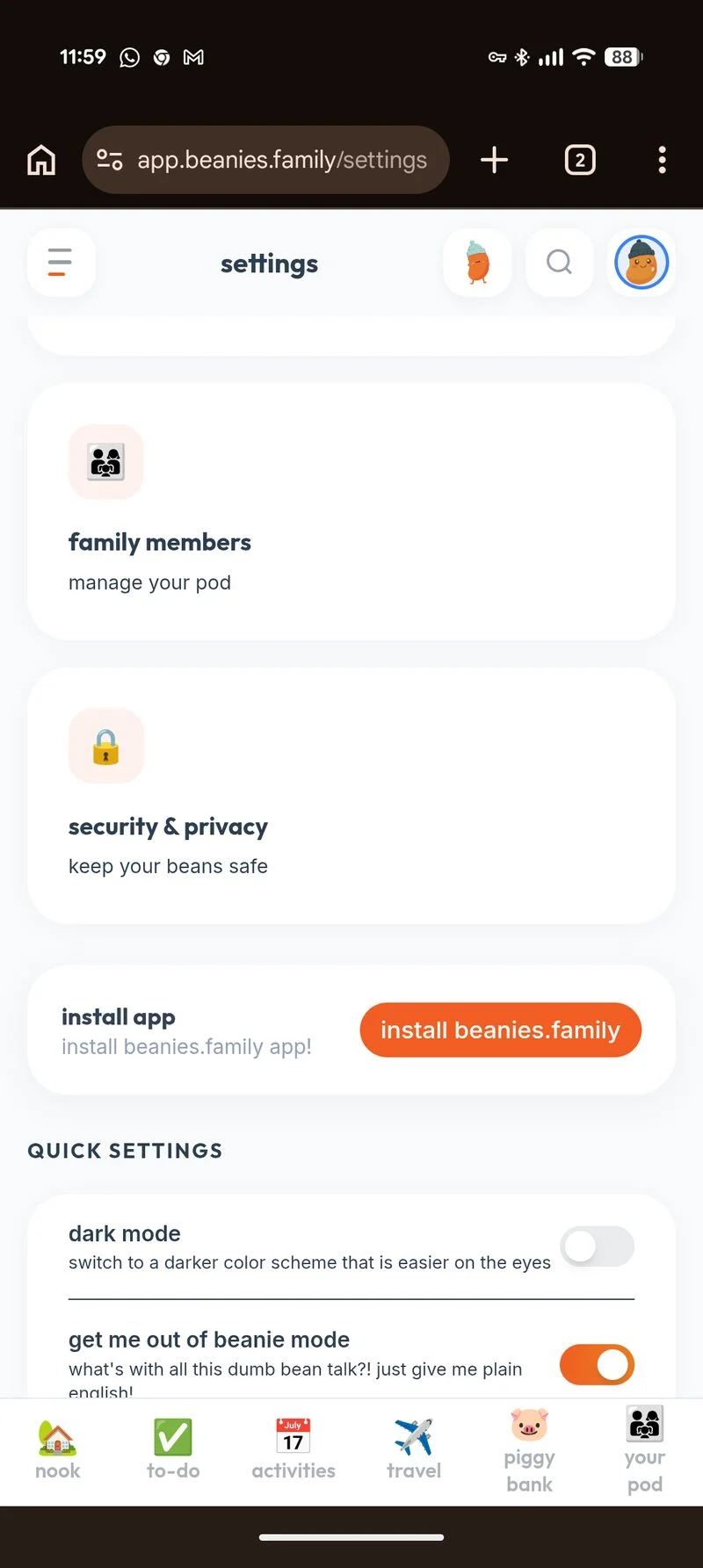
Tap the Settings link in the sidebar (or the menu on mobile)
Scroll down to the Install App section
Tap the Install beanies.family button
Confirm in the browser pop-up — the app icon is added to your home screen
Option 3 — Install from the browser menu
If the prompt didn’t appear and you don’t see the Install App section in Settings, you can always install manually from the browser:
Open app.beanies.family in Chrome — no need to sign in yet, you’ll do that once the installed app opens
Tap the three-dot menu (⋮) in the top-right corner
Tap Install app or Add to Home screen (the exact label depends on your Android version)
Tap Install in the pop-up to confirm
The beanies icon appears on your home screen — tap it to launch the app
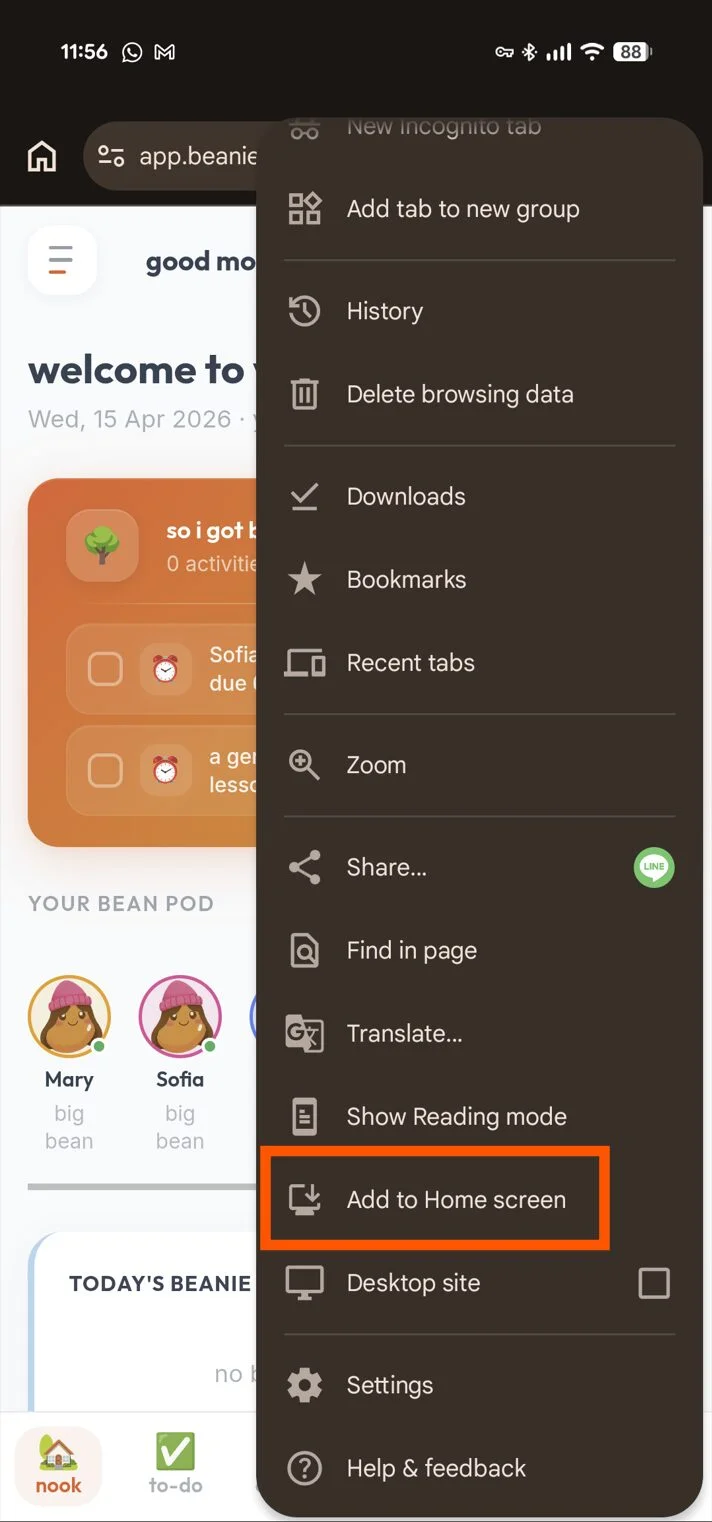
Edge, Samsung Internet, and Firefox work too — the steps are the same: open the browser menu and look for "Install app" or "Add to Home screen".
Installed the app? Skip ahead to After installing to sign in.
💻 Desktop (Mac, Windows, Linux)
On your computer, Chrome-based browsers — Chrome, Edge, Brave, Arc, and others — all support PWA install. You have two ways to do it.
Option 1 — Click the install icon in the URL bar
Look for the install icon at the right edge of the URL bar — it looks like a small monitor with a down-arrow.
Open app.beanies.family in Chrome / Edge / Brave — no need to sign in yet, you’ll do that once the installed app opens
Click the install icon in the URL bar (right side, near the bookmark star)
If you don’t see the icon, open the browser menu (⋮ or …) and look for Install beanies.family or Apps → Install this site as an app
Click Install in the confirmation pop-up
beanies.family opens in its own window and is added to your Applications / Start Menu
Option 2 — Install from inside the app (Settings)
Already signed in? Click Settings in the sidebar, scroll to the Install App section, and click Install beanies.family. Confirm in the pop-up and the app is added to your machine.
Safari on macOS can install PWAs as of Sonoma (14.0+). Open app.beanies.family in Safari, then from the menu bar choose File → Add to Dock.
After installing
Launch the app from its new icon and sign in with your Google account. If you already have a family pod, choose Load Existing Family and pick your .beanpod file from Google Drive. Enter your recovery code and you’re in.
How to uninstall
Uninstalling removes the app icon and clears the app’s local cache on that device. Your pod file on Google Drive is not affected — you can re-install any time and load it back.
Uninstall on iPhone / iPad
Find the beanies icon on your home screen
Touch and hold the icon until a menu appears
Tap Remove App (or Delete Bookmark on older iOS)
Confirm Delete from Home Screen or Delete App
Uninstall on Android
Find the beanies icon on your home screen or app drawer
Touch and hold the icon
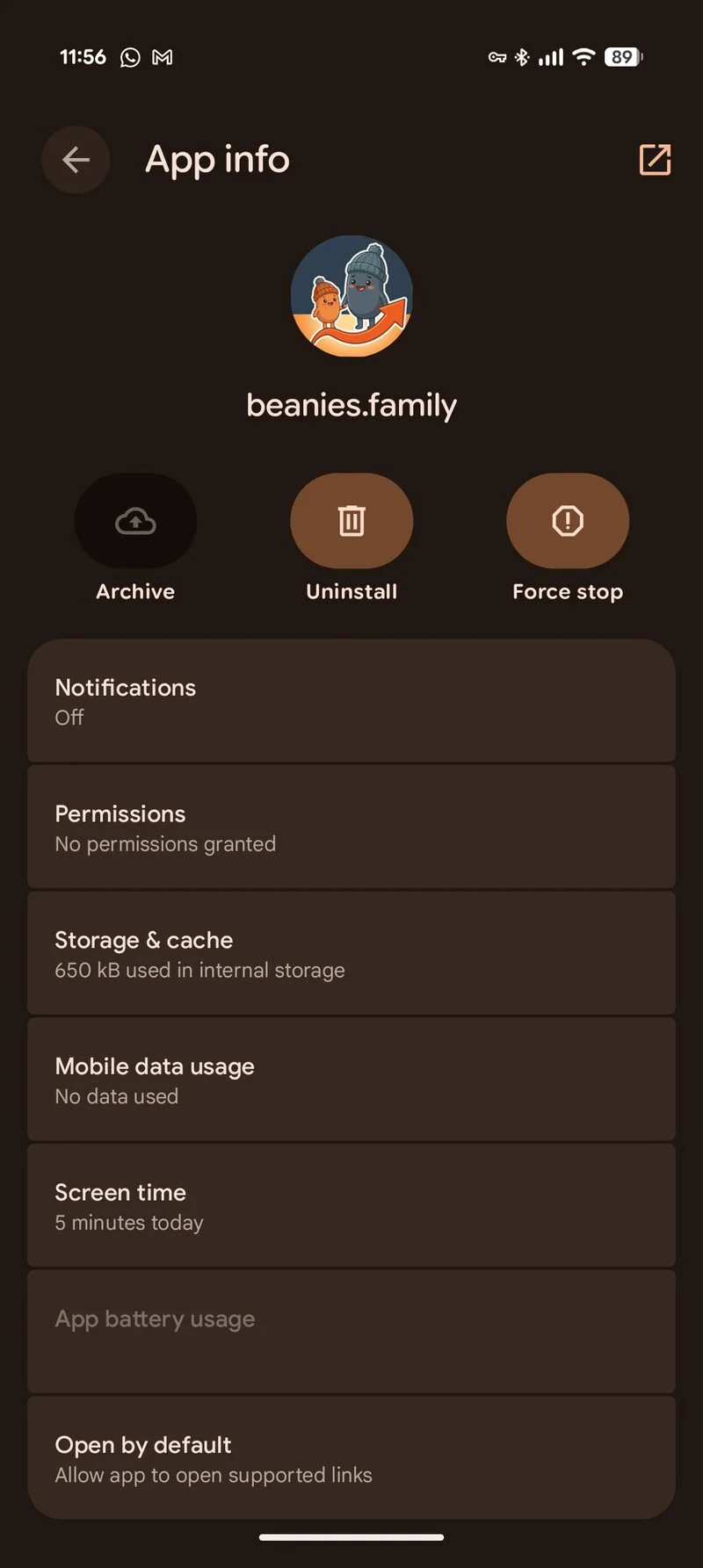
Drag it to Uninstall at the top of the screen, or tap Uninstall in the pop-up menu
Confirm OK / Uninstall
Uninstall on desktop (Chrome / Edge / Brave)
Open the installed app
Click the three-dot menu (⋮) in the app window’s top-right
Click Uninstall beanies.family
Confirm Remove (optionally tick "Also clear data" to wipe the cache)
Uninstalling clears local data on that device only. As long as your .beanpod file is still on Google Drive (or wherever you saved it), your pod is safe and you can restore it by re-installing and choosing Load Existing Family.
Troubleshooting
"Install app" option is greyed out or missing
Make sure you’re using a supported browser (Chrome, Edge, Brave, Safari on iOS 16.4+). If you’re already in private / incognito mode, switch to a normal window — private browsing blocks PWA install on most browsers.
The app opens but shows a URL bar at the top
That means the app wasn’t installed directly from app.beanies.family. Uninstall the current icon (steps above), then visit app.beanies.family fresh and re-install using the steps for your device. The new install will launch in full-screen mode.
I don’t see the icon after installing
On Android and iOS, check your full app drawer / all apps list — the icon might have been placed there rather than on the main home screen. On desktop, look in your Applications folder (macOS) or Start Menu (Windows).